
Quick Start

Start with your first report.

Pick an event, compare the players, and build a clearer view of your next DFS decision. Here is how to get started with Varsity Data.

Step 01

Choose your slate

Explore reports, choose Golf or Football, then find the event and DFS site you want to research. Check the event date so you know whether you are opening a current or archived report.

Explore reports

Your checklist

  1. 1Choose your sport
  2. 2Check the event and date
  3. 3Open the report
Step 02

Compare the players

Start with the rankings. Compare player scores, salary, and the context available in that report. Use the available lineup information to understand how players fit together, alongside your own research.

Explore Golf reports

Your checklist

  1. 1Read the rankings
  2. 2Compare salary and context
  3. 3Inspect available lineup information
Step 03

Review what happened

Return after the event to review outcomes where results have been published. For a broader view of the Golf model, explore its historical backtesting and read the methodology alongside the results.

View Golf backtesting

Your checklist

  1. 1Check for published results
  2. 2Compare expectations with outcomes
  3. 3Read the Golf backtesting methodology

Inside a report

A real example to orient you.

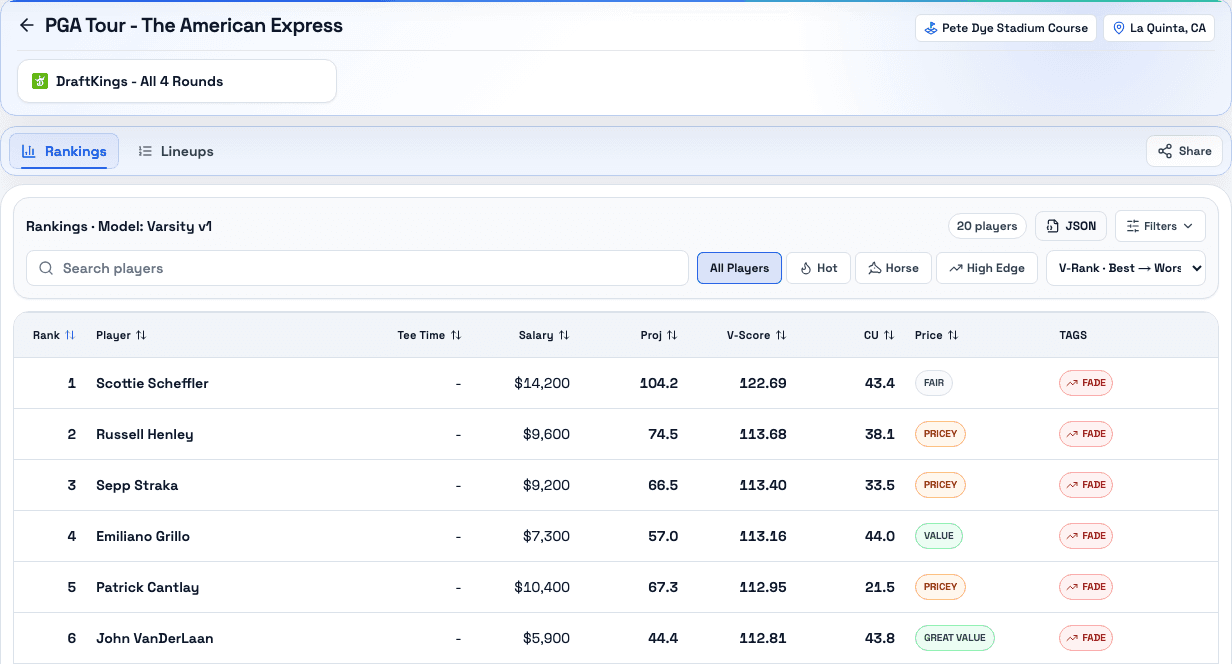
Start with the player rankings, then use the report's available context to ask better questions about your selections.

Varsity Data Golf rankings in an archived American Express report
Archived product example: The American Express, January 22–25, 2026. Shown for orientation; this is not a current slate.
Open this archived Golf report

A few terms, explained.

Slate
The group of games or event covered by a DFS contest.
Rankings
An ordered view of players in a report. Scores and available context vary by sport.
Backtesting
A historical evaluation of a model. Read the methodology and time period before interpreting the results.

Find a report to start with.

Choose Golf or Football and take the first step.